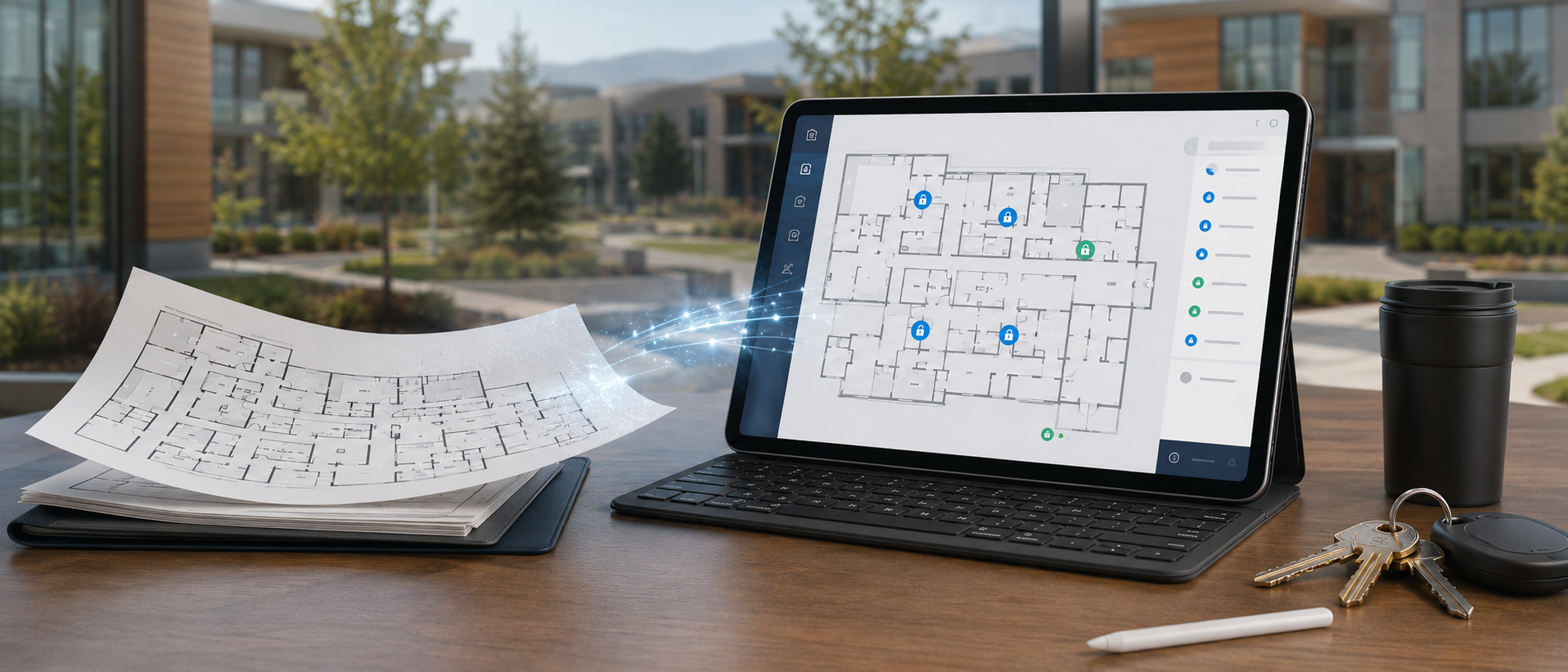

Most of the facilities teams I have worked with have a floor plan for every building they manage. The plan is usually a PDF, often a scan of a paper original, sometimes a CAD export that nobody on the current team has software to open. The plan lives in a folder on a shared drive or in a binder in a closet. New staff are handed it on their first day. Then it goes back in the folder.
The plan is correct, more or less, about where the rooms are. It is silent on the operational questions that actually matter day to day. Which doors are keyed. Which are fobbed. Who has access. Which key opens which one. Where is the master kept. None of this is on the plan, because the plan was drawn by an architect for a contractor twenty years ago.
The Floor Plans feature in KeyDog is what happens when you take that PDF and put it underneath the live access data.
How it works
The mechanic is simple. You upload a PDF or an image — anything from a hand-drawn sketch to a polished architectural plan. KeyDog stores it as a layer. Then you drop pins on it, one per door or per key location. Each pin is linked to a record in the database — a specific door, a specific key, or both.
When somebody opens the plan, they see the building the way they already picture it, with pins overlaid showing every tracked access point. Click a pin and the side panel opens with the full record: hardware specs, who can open it, what key cuts it accepts, what fob profile applies, the audit log of every change in the last year.
The pins stay linked to the underlying records as those records change. When you reassign a key, the pin on the floor plan now shows the new holder. When you upgrade hardware on a door, the pin's panel reflects the new spec. The plan does not go stale because it is not a separate document — it is a view onto the live database.
Why we did not build this on top of CAD or BIM
This is a question we got a lot during pilots, especially from larger institutional customers who have invested in BIM (Building Information Modeling). The reasonable thing, on paper, would be to ingest IFC files from the BIM system and use the canonical door geometry.
We tried that for about two weeks during the design phase and abandoned it. Here is why.
The BIM model is a different artifact from the operational reality. The BIM model has the door that was specified during construction. The operational reality has the door that exists today, after twenty years of replacements, retrofits, and the time the football team broke through a wall to make a shortcut. These two things diverge, and they diverge in the direction of the operational reality being correct.
We also tried it because we are engineers, and engineers always want the high-fidelity solution. The high-fidelity solution turns out to be the wrong product for the people who actually need it. Facilities directors do not want to learn BIM software. They want to click a thing on a picture and have it tell them who can open the door.
So the design choice was to accept whatever the customer already has — PDF, image, marketing brochure, hand-drawn — and let them pin it. The cost is that the geometry is not authoritative. The benefit is that every single customer can use the feature on day one without an integration project.
What the feature actually unlocks
The most surprising result from the pilots was that new staff get up to speed faster.
Onboarding a new facilities employee used to involve a building walk-through. The veteran would walk the new person through every floor, pointing out the science wing, the IT closet, the auditorium electrical room, the storage that you have to enter through the maintenance corridor. The new person would take notes. A week later, most of the notes would be lost or unreadable.
With the floor plan view, the new person opens the building plan on their phone or tablet, sees the pinned doors, and clicks any one of them to get the full context. They can answer their own questions instead of interrupting the veteran every time something comes up. The first onboarded employee at one of our pilot sites told us they felt productive on day three instead of day fifteen.
The second use is during emergencies. Last December, one of our customers had a sprinkler head fail in a server room. The maintenance lead on call needed to know, in under a minute, who else had access to that room so he could be sure he was the only one on his way in. Pre-KeyDog this would have been a five-minute spreadsheet hunt while standing outside the building. With the floor plan view, he opened the plan, tapped the pin for the server room, and saw the four other staff members with credentials. He called the supervisor, confirmed nobody else was inbound, and entered. The whole thing took ninety seconds.
The third use, which I did not expect, is for capital planning. Facilities directors are using the access pin density on a floor plan as a heuristic for where the operational risk is concentrated. A wing with eight master-level holders is a wing where access drift is a real concern. A wing with three is fine. Having the data visualised on the actual building geometry makes a budget conversation with the CFO much faster than the same conversation with a table of numbers.
What is not in the feature today
A few things we considered and deferred.
We do not yet support multi-floor 3D views. Each floor is its own plan, uploaded and pinned independently. For most of our customers this is fine — they think about buildings one floor at a time anyway. For a small number of customers with verticality that matters (parking structures, hospital towers), we are planning a "stack" view that overlays floor plans for the same building. Not in the next release, but on the road map.
We do not support pin clustering at zoom-out levels. If you have a plan with two hundred pins, they overlap visually at the default zoom. The workaround is to use floor-specific plans rather than one campus-wide plan, which is what most customers do anyway. We may revisit this.
We do not support automatic geometry extraction from the PDF — that is, we do not look at the PDF and detect where the doors are. Every pin is manually placed. We considered building an ML-based detector for this and decided that the failure mode is bad enough (a misplaced pin is worse than no pin) that we would rather keep it manual. The initial pinning of a building takes a couple of hours and only has to be done once.
How to try it
Floor Plans is included on the Campus plan and is available as a $20-a-month add-on for Starter. Both tiers can pin an unlimited number of doors and keys.
If you want to see how the pinning interface works, the live demo has three buildings pinned out for a synthetic community college, including the science hall that gets used most heavily in the example workflows. If you want to talk about how this would work for your specific buildings, sales is the door.
See KeyDog for yourself
Replace the key spreadsheet. Spin up a live demo or talk to our team about your campus.